


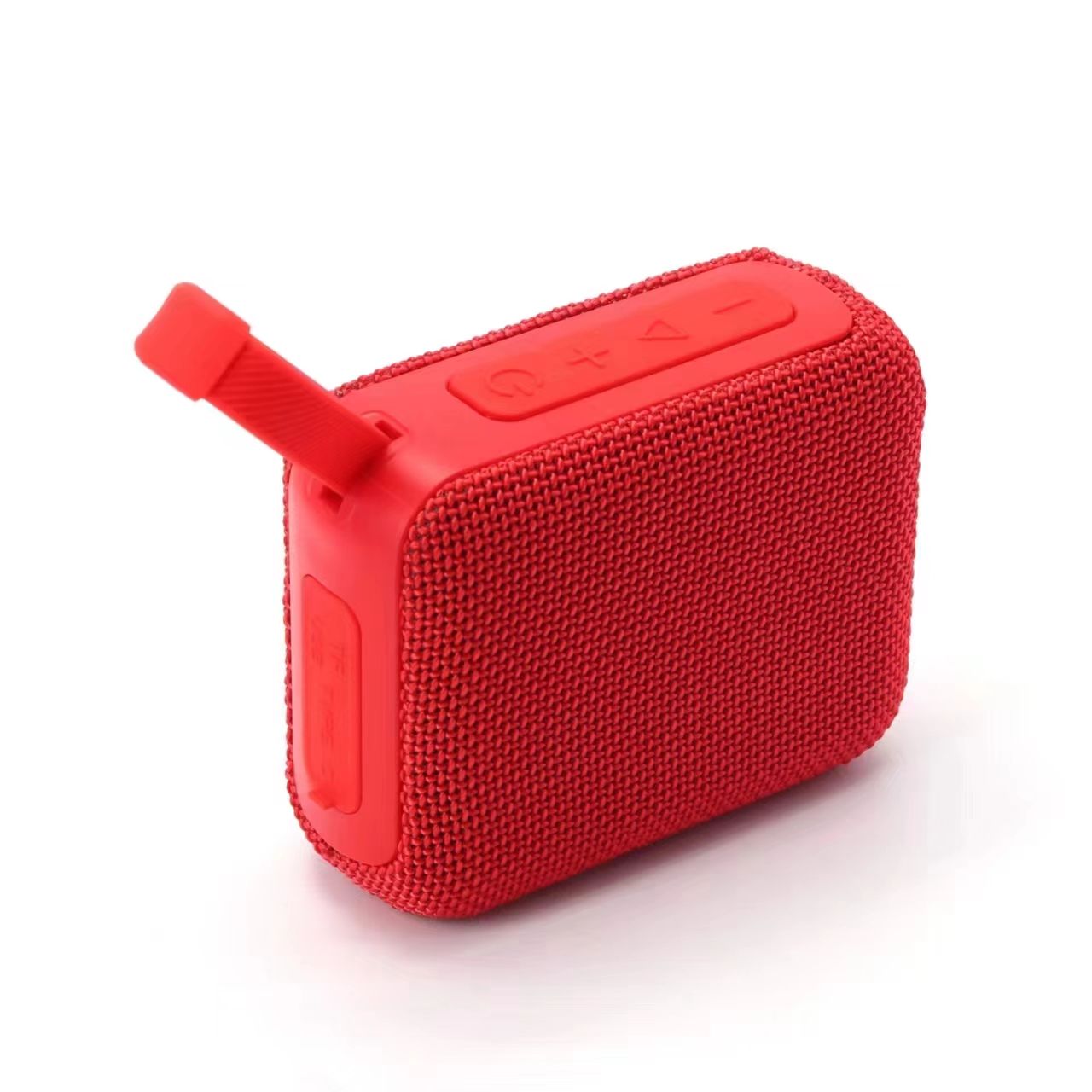
Pairing a Bluetooth speaker with any device is usually quick and simple. Here’s a step-by-step guide that should work for most devices:
1. Turn On Your Bluetooth Speaker
- Power On: Hold the power button on your speaker for a few seconds until you see a blinking light (usually blue or white) indicating it’s ready to pair. Some speakers may have a dedicated Bluetooth pairing button.
- Pairing Mode: If it doesn’t automatically go into pairing mode, press and hold the Bluetooth button (usually marked with a Bluetooth symbol) until the light flashes, signaling it’s in pairing mode.
2. Enable Bluetooth on Your Device
- Smartphone/Tablet: Open your device’s settings app, then go to Bluetooth settings. Make sure Bluetooth is turned on.
- Laptop/Desktop: If you’re using a laptop or PC, click on the Bluetooth icon in the system tray (Windows) or the Bluetooth icon in the menu bar (Mac), then go to Bluetooth settings.
- Other Devices (TV, Smartwatch, etc.): Follow the same process in the settings menu to enable Bluetooth on the device.
3. Search for Available Devices
- Smartphone/Tablet: Your device should automatically start scanning for nearby Bluetooth devices once Bluetooth is enabled. You may need to wait a few seconds for your speaker to show up.
- Laptop/Desktop: In Bluetooth settings, click on Add Bluetooth or other device (Windows) or Connect (Mac) and wait for the available devices to appear.
4. Select Your Speaker
- Once your speaker shows up on the list of available devices, click on it. The name of your speaker will typically match the model number or brand (e.g., “Anker Soundcore 2” or “JBL GO 3”).
5. Confirm Pairing
- Automatic Connection: Most devices will automatically connect once you select the speaker. If prompted, click Yes or Pair to confirm the connection.
- Password/PIN: If your device asks for a pairing code or PIN, it’s usually either “0000” or “1234.” Check the speaker’s manual for specific details if you’re unsure.
6. Test the Connection
- After pairing, test the speaker by playing music, a video, or any sound from your device. The sound should play through the speaker.
Troubleshooting Tips
- Not Showing Up? Make sure the Bluetooth on both the speaker and the device is turned on and in pairing mode. Restarting both devices may help.
- Connection Issues? If the connection is unstable, turn off Bluetooth on both the speaker and the device, then turn it back on and try pairing again.
- Already Paired with Another Device? If your speaker was previously paired with another device, you might need to unpair it first by turning off Bluetooth on the other device, or reset the speaker by holding the power button for 10-15 seconds to clear the memory.
Once you’ve paired your Bluetooth speaker, it should automatically reconnect to your device each time you turn both the speaker and device on (unless you pair it with a new device).